Jobs & photos
A job has a client, an address, services, a date. Photos and notes attach to the job for the long-term record — on every tier.
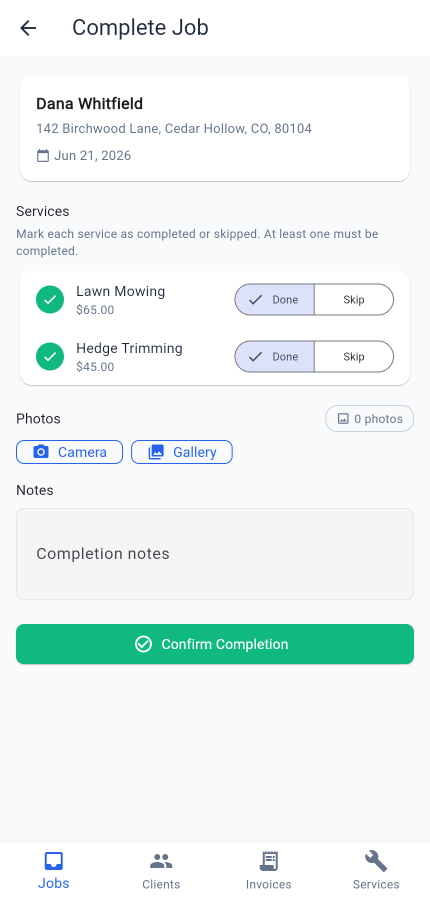
A job is a scheduled visit to a client's address to perform one or more services. It has a status, a date and time, a service list, optional notes, and photos — available on every tier.
Completing a job
From the Today tab, each job card has quick-action buttons. Tap Complete and a dialog lets you mark each service as Done or Skip, add a completion note, and confirm. That's the fast path — useful when you're standing in the driveway.
If you want to attach photos or write a longer note, open the job first. The job screen has a Photos section with Camera and Gallery buttons, plus a notes field. Add what you need, then hit Complete.
Photos
Photos are available on every plan, free included. They're added manually — Mour doesn't surprise you with a forced photo step. You decide when a job needs them. Each photo can have an optional note, and they all stay attached to the job permanently. You can add photos before you complete a job or go back and add them afterward — the job's photo record stays open.
Every upload is handled for you: iPhone HEIC files are converted to JPEG, and location and EXIF metadata is removed from every photo you upload — whatever format your phone or browser sends. Photos stay private to your business — there's no public gallery and no link anyone else can open. They're yours, kept with the job.
Photos per job by plan
How many photos you can attach per job depends on your plan — a couple on the free plan, more on Professional, and unlimited on Professional. See the current limits on the pricing page.
When you reach the per-job allowance, the Camera and Gallery buttons disable on that job. Delete a photo to free a slot, or move up a plan for more per job. Other jobs start fresh at zero — the allowance is per-job, not per-account.
Notes
Per-job notes for anything the photo doesn't capture — weather, gate access, who answered the door, deviations from the standard service. Notes also exist at the client level and the address level for things that don't change job-to-job.
Status
Jobs move through Scheduled, In Progress, Completed, Rescheduled, Cancelled, or Deferred. A job can't slip backward — once it's Completed it stays Completed — so your history of what happened on each visit always holds up.
How it works
- Schedule a job for a client's address with one or more services.
- Day-of, the job appears in your Today tab with a quick "Complete" button on the card.
- For a fast finish, tap Complete from the card and confirm the dialog.
- For photos or longer notes, open the job, add what you need, then Complete.
- Each service in the job gets marked Done or Skip with an optional note.
Good to know
- The number of photos per job depends on your plan — see the pricing page for current limits.
- Photos are added when you want them — there is no forced photo step at Complete.
- Photos, not video.
- Your job photos stay private to your business — no public gallery, no shareable link.
Plan:included on Hustler (all plans) and up.